Pixera, Stylish Screenshots instantly!
Create polished macOS screenshots in seconds with gradients, shadows, redaction, annotations, and export-ready layouts in Pixera.
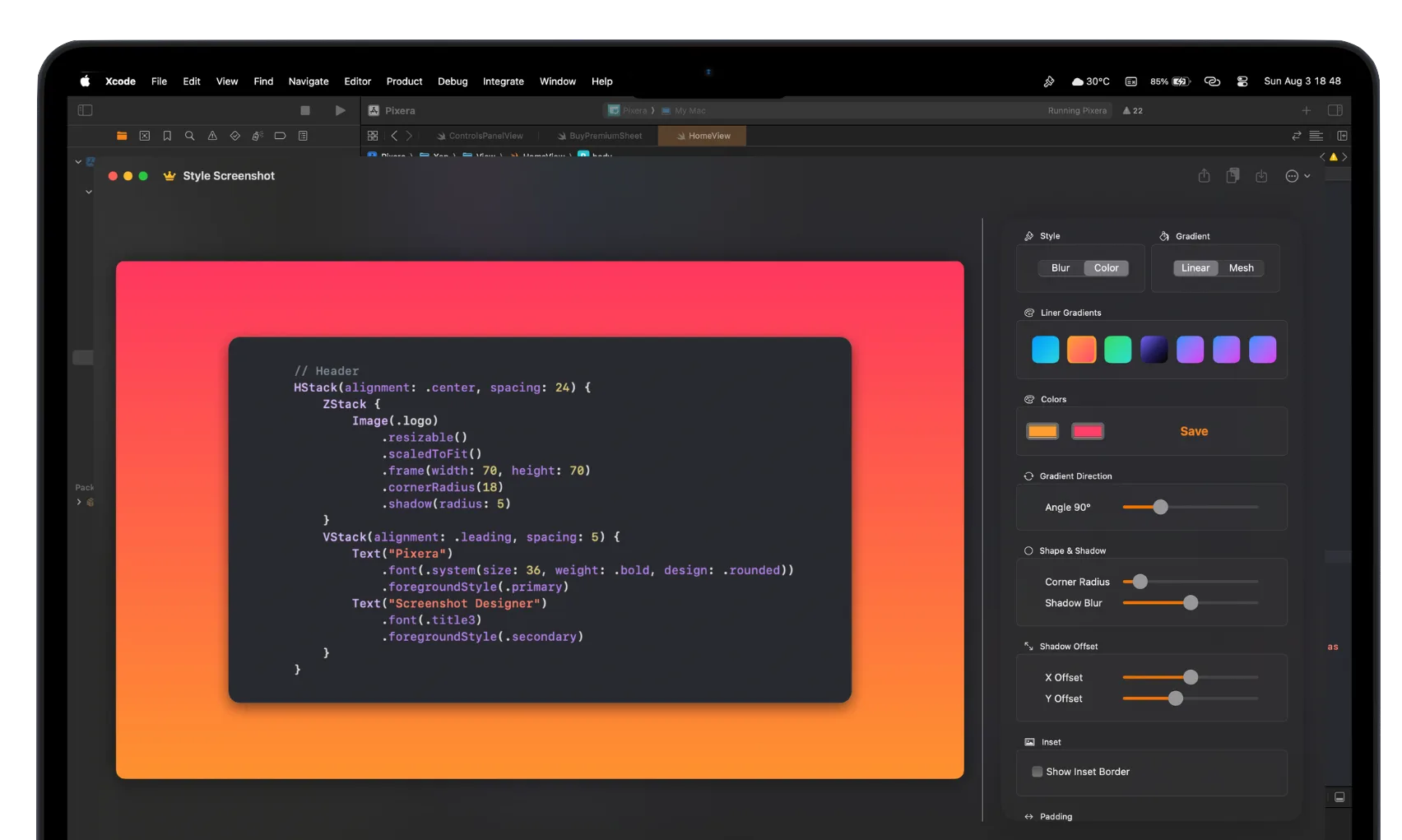

Transform macOS Screenshots with Pixera's Stylish Styling Features
Elevate your macOS screenshots instantly apply blurred, mesh, or linear gradients, add rounded corners and shadows, and redact sensitive information with Pixera's seamless workflow.
Screenshot styling with blurred, mesh, or linear gradient backgrounds to enhance focus and visual appeal within Pixera.
Mark up screenshots like a pro
Pixera's all-new annotation tools let you add arrows, rectangles, and text labels anywhere on your screenshots. Highlight important details, guide the viewer's eye, and make your visuals speak for themselves.
Discover Pixera's Advanced Screenshot Styling & Export Features
Screenshot workflow streamlined with batch exports, adaptive insets, watermark control, and more advanced Pixera tools for professional styling.
Pixera – Gradient Presets
Screenshot gradient presets: save and reuse your favorite styles.
Screenshot gradient presets save customized styles for consistent professional looks across all captures.
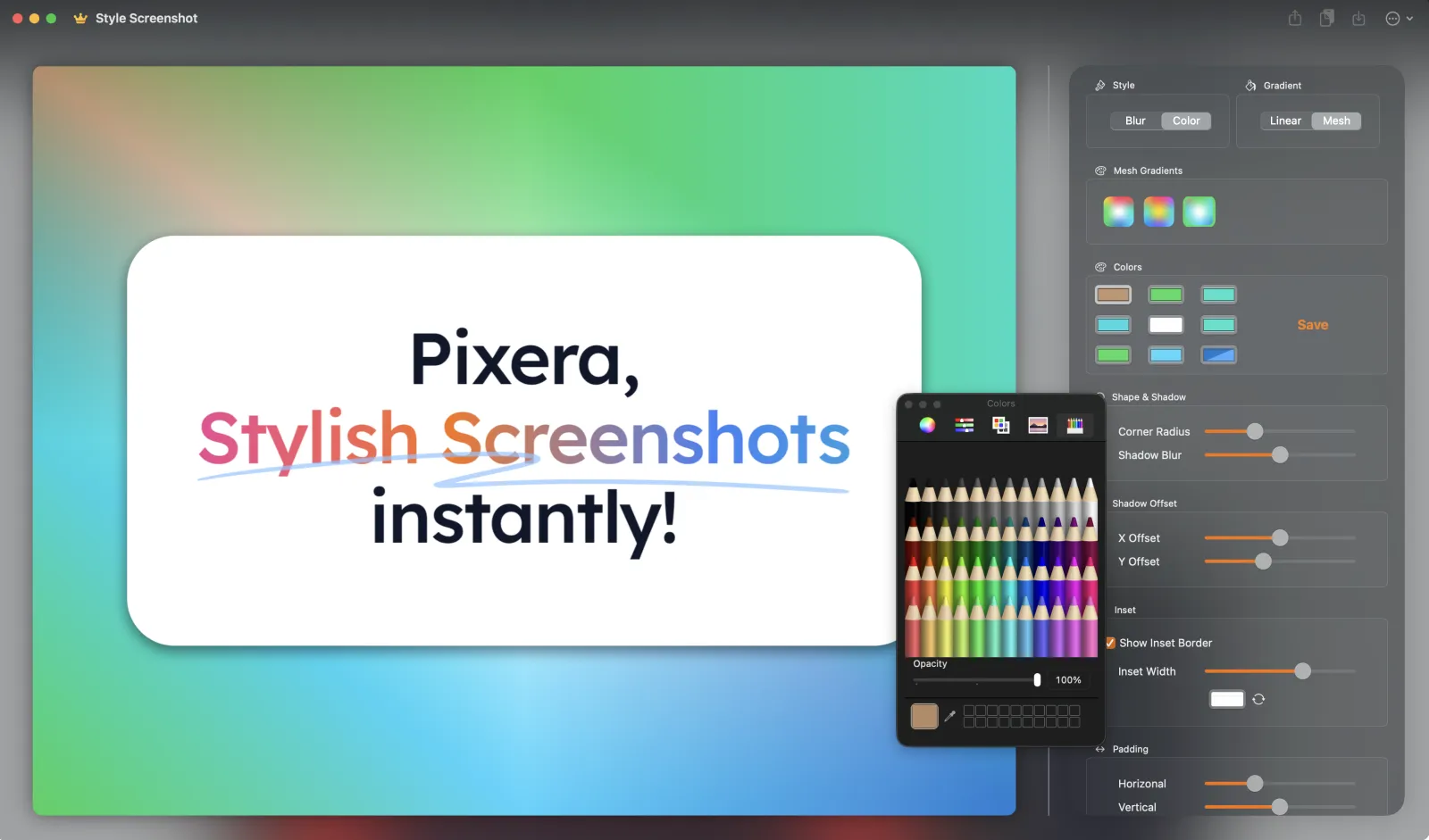
Pixera – Auto Inset Colors
Screenshot adaptive insets colored to match your content automatically.
Screenshot insets adapt and blend seamlessly with content for polished visuals using Pixera.
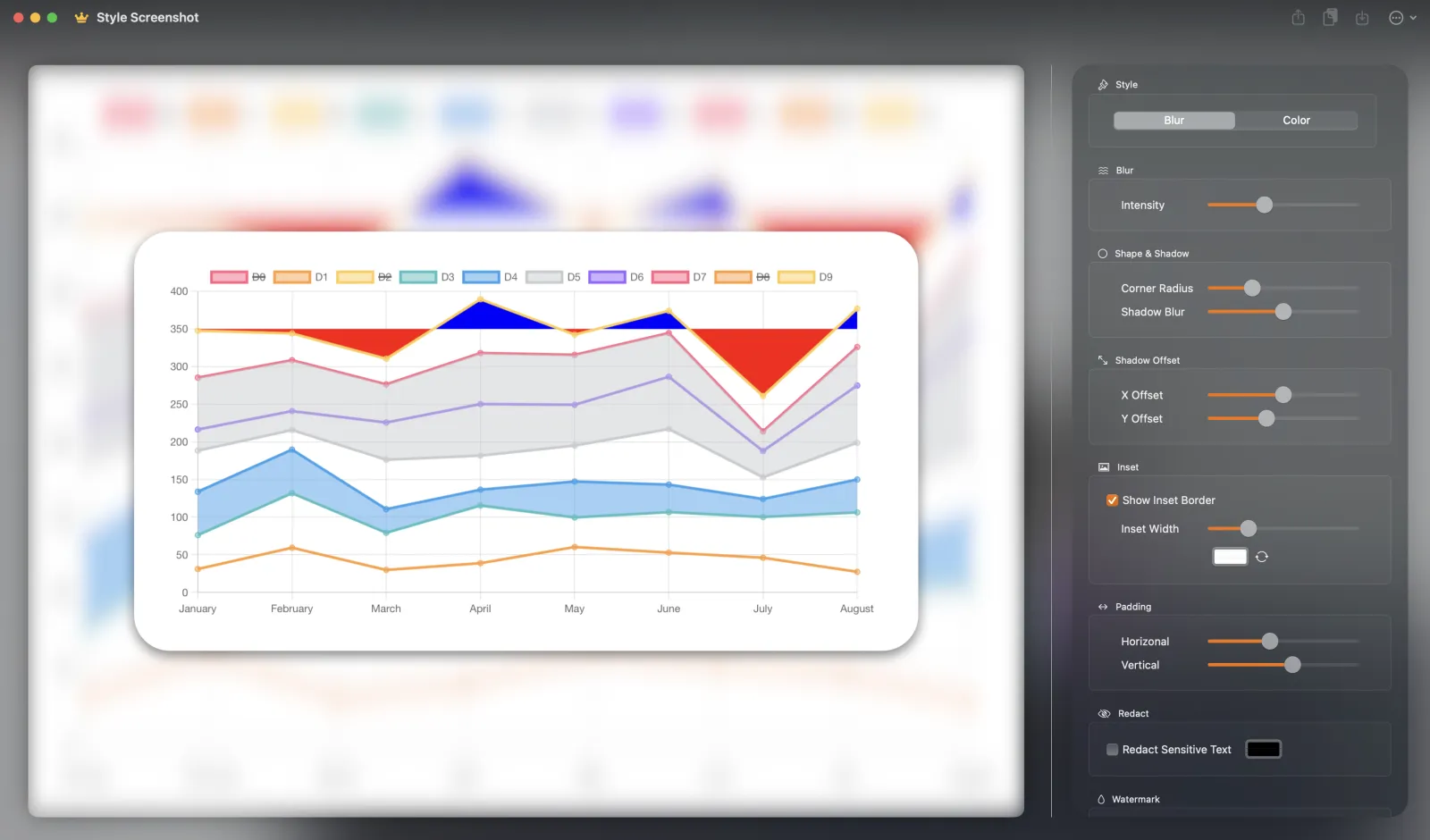
Pixera – Blurred Background
Screenshot blurred backgrounds add depth and focus instantly.
Screenshot blurred backgrounds draw attention to main content and enhance visual polish automatically.
Screenshot gradient presets: save and reuse your favorite styles.
Screenshot gradient presets save customized styles for consistent professional looks across all captures.
Screenshot adaptive insets colored to match your content automatically.
Screenshot insets adapt and blend seamlessly with content for polished visuals using Pixera.
Screenshot blurred backgrounds add depth and focus instantly.
Screenshot blurred backgrounds draw attention to main content and enhance visual polish automatically.

Seamless Screenshot Styling with Pixera – Download Today
Enhance your productivity: instantly style your screenshots with gradients, blur effects, rounded corners, and privacy redaction using Pixera.
Download PixeraSee Why Professionals Love Pixera for Screenshot Styling
Screenshot styling pros praise Pixera for turning raw captures into polished visuals in seconds.
Pixera makes my UI mockups look absolutely stunning. I’ve never exported screenshots this fast and this polished.
Jenna MyersUI/UX Designer at Flowmark
The smart insets and gradients in Pixera save me hours every week. It’s like having a design assistant built in.
Carlos NguyenIndie iOS Developer
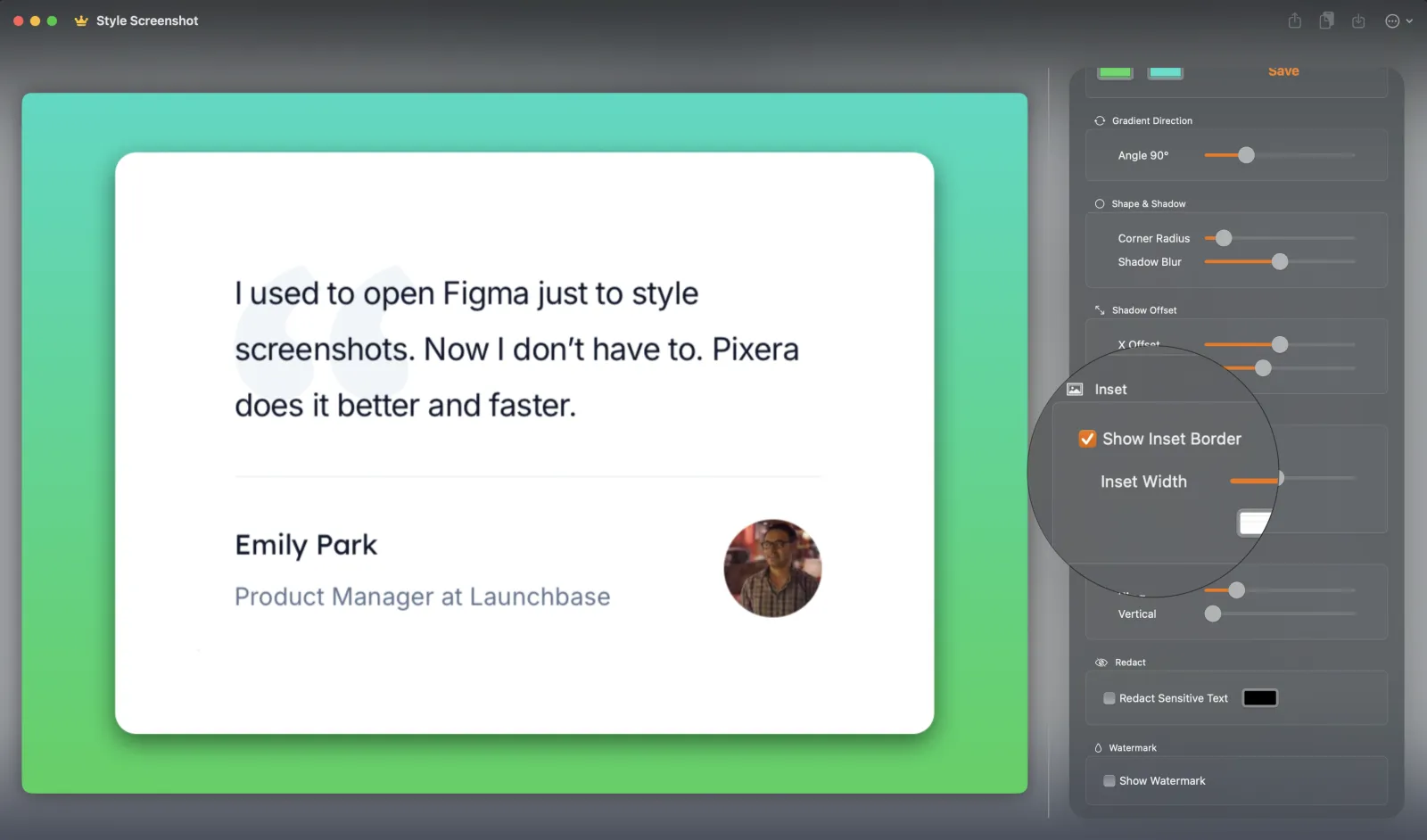
I used to open Figma just to style screenshots. Now I don’t have to. Pixera does it better and faster.
Emily ParkProduct Manager at Launchbase
Pixera makes my portfolio pop. Every screenshot looks intentional and clean, without any editing hassle.
Rahul PatelFrontend Engineer at Boldware
Pixera changed how I share work with clients. The styling is so crisp, it feels like part of my brand now.
Sofia KellerFreelance Designer
Hotkeys + smart defaults = life saver. Pixera has become a core part of my content creation workflow.
Tyson BlairTech YouTuber
Pixera Premium Pricing
Premium screenshot styling features: unlimited gradient presets, auto insets, blurred backgrounds, watermark removal, and privacy redaction.
Pixera – Premium Plan
Screenshot styling premium plan: unlock full control and privacy tools for professional-grade captures.
$19.99
- Screenshot gradient presets: save and reuse favorite styles
- Screenshot adaptive insets that match content colors
- Screenshot blurred backgrounds for depth and focus
- Screenshot watermark removal for clean exports
- Screenshot privacy redaction for sensitive data
Workflow Guides
Choose the Pixera page that matches your workflow.
Browse the highest-intent Pixera pages: core workflow guides, documentation use cases, and honest comparisons against the Mac screenshot tools buyers already know.
Core Guide
Mac Screenshot Editor
The main Pixera workflow for styling, annotation, privacy cleanup, and export-ready screenshot presentation.
Mac Screenshot EditorUse Case
Documentation Screenshots
See how Pixera keeps help center, onboarding, and changelog screenshots clearer with annotations, balanced framing, and privacy-safe cleanup.
Documentation Screenshots for MacUse Case
Screenshot Annotation Tool
Learn how to add arrows, labels, and clear product callouts without breaking the screenshot workflow.
Screenshot Annotation Tool for MacPrivacy
Redact Screenshots on Mac
See how Pixera protects emails, API keys, customer names, and other sensitive details before sharing screenshots.
Redact Screenshots on MacStyling
Screenshot Backgrounds
Use blur, gradients, and adaptive insets to make screenshots feel sharper in docs, social posts, and launch pages.
Screenshot Backgrounds on MacComparison
Pixera vs CleanShot X
Compare polished still-image workflows, annotation depth, capture breadth, and pricing before choosing your Mac screenshot tool.
Compare Pixera vs CleanShot XComparison
Pixera vs Shottr
Compare Pixera with Shottr across backgrounds, annotation tools, scrolling capture, OCR, pricing, and the screenshot jobs each app fits best.
Compare Pixera vs ShottrComparison
Pixera vs Snagit
Compare Pixera with Snagit across documentation workflows, step-guide automation, smart redaction, broader capture features, and still-image polish.
Compare Pixera vs SnagitComparison
Pixera vs Xnapper
Compare Pixera with Xnapper across styling workflow, annotations, redaction, and the kinds of screenshot jobs each app fits best.
Compare Pixera vs Xnapper
Frequently Asked Questions about Pixera Screenshot Styling
Screenshot styling questions? Find answers on offline processing, custom gradients, privacy redaction, batch exports, and more. Need further help? Contact support.
-
Does Pixera work with all screenshot tools?
Yes! Pixera detects screenshots from macOS or third-party tools instantly and opens the editor automatically.
-
Is my data processed online?
No. Pixera is a completely offline macOS app. All image processing happens on your device, ensuring full privacy.
-
Can I create custom gradient styles?
Absolutely. You can save and reuse your favorite gradient sets, adjust directions, and customize them freely.
-
-
How does Pixera detect sensitive data?
Pixera uses on-device heuristics to detect patterns like emails, API keys, and card numbers—and redacts them automatically.
-
Does the free version include all features?
The free version offers the core editor. Pixera Premium unlocks batch exports, watermark removal, redaction, and advanced styling.
-
Can I export in high resolution?
Yes! All exports are pixel-perfect and crisp, regardless of your screen resolution.
-
-
Is there a trial for Premium?
There is no trial, but Pixera offers a free version with core editing tools. Upgrade to Premium for advanced styling and privacy features.
-
Can I style multiple screenshots at once?
With Pixera Premium, you can batch style and export multiple screenshots to save time.
-
Where can I get support?
You can email us at hello@pixeratools.com or reach out via our website. We’re happy to help!
-